- File
-
Designs
-
-
All Categories -
Category #1 - New Category
-
My designs
-
-
Help
-
How to use our Product Designer?
Use the menu to create your personalised design. Tap or click Text, Cliparts, Shapes or Templates to add elements to your product. If Images is available, you can also upload your own photograph, logo or artwork.
Tap or click an element on your design to select and edit it. You can then move, resize, rotate or customise it using the available controls.
If you are using a mobile device, tap Design at the bottom of the screen to return to the product and continue editing your design.
Keep all important text, faces, logos and design elements safely inside the editable area to ensure they appear correctly on the finished product.
Select Text to add a name, message, date or other wording to your design. Tap or click your text to change the font, size, colour, alignment and spacing.
Use Cliparts and Shapes to add decorative elements. After adding an element, tap or click it to move, resize or rotate it and, where available, change its colour.
Templates provide ready-made designs that you can personalise using your own text, colours and other available elements.
Always check names, dates and spelling carefully before ordering.
If the Images option is available for your product, you can upload your own photograph, logo or artwork.
For the best result, use a clear, high-quality image and avoid very small images or screenshots whenever possible. If a low-resolution warning appears, we recommend using a higher-quality version of the image.
After uploading your image, tap or click it to resize, reposition or use any additional image-editing tools available for that product.
If the Images option is not displayed, image uploads are not available for that particular product.
Tap or click any element to select it. Use the available controls to move, resize, rotate, duplicate or delete it and, where available, change its colour.
Use Layers to control which elements appear in front of or behind others. You can also use Undo and Redo if you need to correct a change.
If you are using a mobile device, tap Design at the bottom of the screen to return to the product and continue editing your design.
On smaller screens, close the side menu when needed to give yourself more room to view your design. Use the Zoom controls whenever you need a closer look.
Before adding your personalised product to the basket, carefully review your complete design. Check all names, dates and spelling, positioning and alignment, image quality, colours and selected options.
Make sure all important text, faces, logos and design elements remain safely inside the editable area.
Use Preview to check your finished design before ordering. Please remember that the design displayed on screen is a digital preview and colours may vary slightly on the finished product.
Once you are happy with your design, select Add to Cart to complete your order.
KS Creations Product Designer
Our online product designer allows you to customise selected products using text, cliparts, shapes, templates and, where available, your own images, photographs or logos.
The options available may vary depending on the product and personalisation method. Before ordering, please carefully check your design, including spelling, positioning, colours and image quality.
The design shown on screen is a digital preview of your personalised product. Small differences in colour, positioning or appearance may occur during production depending on the product and material.
Need help with your design or order?
Please visit our Contact Us page and we will be happy to assist.Copyright © KS Creations. All rights reserved.
Powered by Lumise version 2.1.2
-
- Shop
- Undo
- Redo
- 0.0
-
My Cart
-
Proceed to the next step
- Back To Shop
- Design
- Templates
- Cliparts
- Images
- Text
- Shapes
- Layers
Click or drag to add text









-
Start designing by adding objects from the left side
- All selected objects are grouped | Ungroup?
- Group objects Group the position of selected objects
-
-
Fill options
Save this color
-
-
Options
-
Automatically align the position of <br>the active object with other objects -
ON: Keep all current objects and append the template into OFF: Clear all objects before installing the template -
Replace the selected image object instead of creating a new one -
Select the way how the background image addon display
-
- Replace image
- Crop
-
Mask
-
Select mask layer
-
-
Remove background
-
Remove background
-
Deep:
-
Mode:
-
-
Filters
-
Filters
-
- Original
- B&W
- Satya
- Doris
- Sanna
- Vintage
- Gordon
- Carl
- Shaan
- Tonny
- Peter
- Greg
- Josh
- Karen
- Melissa
- Salomon
- Sophia
- Adrian
- Roxy
- Singe
- Borg
- Ventura
- Andy
- Vivid
- Purple
- Thresh
- Aqua
- Edge wood
- Aladin
- Amber
- Anne
- Doug
- Earl
- Kevin
- Polak
- Stan
-
Brightness:
-
Saturation:
-
Contrast:
-
- Clear Filters
- Click then drag the mouse to start drawing. Ctrl+Z = undo, Ctrl+Shift+Z = redo
- QRCode text
-
Fill options
-
Fill options
Save this color
-
Transparent:
-
Stroke width:
-
Stroke color:
-
- Ungroup position
-
Arrange layers
-
Position
-
Object position
Lock object position:
-
Center vertical
-
Top left
-
Top center
-
Top right
-
Center Horizontal
-
Middle left
-
Middle center
-
Middle right
- Press ← ↑ → ↓ to move 1 px, <br>Hit simultaneously SHIFT key to move 10px
-
Bottom left
-
Bottom center
-
Bottom right
-
-
Transforms
-
Rotate:
-
Skew X:
-
Skew Y:
-
Flip X:
Flip Y:
Free transform by press SHIFT+⤡
-
-
Font family
-
Edit text
-
Edit text
-
-
Font size:
-
Letter spacing
-
Line height
-
-
Text Effects
-
Text effects
-
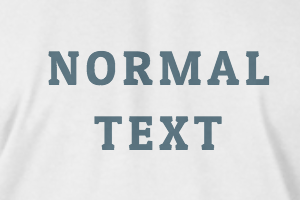
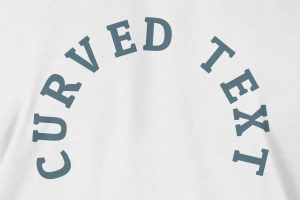
-
Radius
-
Spacing
-
Curve
-
Height
-
Offset
-
Trident
-
-
Text align
- Uppercase / Lowercase
- Font weight bold
- Text style italic
- Text underline